

AI Documentation Assistant
🚀 Try it first
Before you build your own, ask the AI assistant in the bottom-right corner one or two of the example questions below. It’s built with Jhunkoo.ai and powered by the same documentation you’re reading right now.
This guide recreates that exact assistant — from importing your documentation with a sitemap to answering product questions and capturing sales leads.
This documentation is powered by a Jhunkoo.ai agent. In this guide you’ll build the same assistant we use ourselves — one that answers product questions from your knowledge base, captures leads when a visitor shows sales intent, and hands off complex issues to a human.
The same approach works for SaaS docs, API docs, developer portals, help centers, and internal knowledge bases.
Unlike manually adding URLs one at a time, importing a sitemap lets you train an AI assistant on an entire documentation site in minutes.
Example conversations
By the end of this guide, the assistant should handle conversations like these:
| Visitor asks | Agent does |
|---|---|
| How do I embed the widget on Next.js? | Answers from docs |
| How does pricing work? | Answers from your knowledge base, optionally captures a lead |
| Can someone help me migrate? | Captures a lead |
| Can you build this for us? | Captures a sales lead → your support channel |
| Where is the API key configured? | Searches docs |
| I found a bug | Points to your support channel + captures a lead |
The distinctive lesson in this guide is answer freely, capture selectively: most visitors to a docs site are asking self-serve support questions and should just get a good answer. Only a visitor who signals real intent — pricing, sales, “can someone help me” — becomes a lead. Getting that balance right is what makes a docs assistant feel helpful instead of pushy.
Prerequisites
-
A Jhunkoo.ai account and an active subscription.
-
Your documentation’s sitemap URL. For this worked example we use Jhunkoo’s own docs sitemap:
https://www.jhunkoo.ai/sitemap.xml
For your own agent, use your website’s sitemap. Most modern websites publish one automatically (typically at
/sitemap.xml), making it easy to import your documentation, marketing pages, blog posts, or other public content.
This guide uses no built-in tools (no Show Map, no Google API) and no external APIs. The agent’s behaviour comes entirely from the knowledge base and Lead Capture.
URL sources are point-in-time snapshots. Each page is fetched once at ingestion and embedded — the live page is not re-fetched per question. When your docs change, re-import from the sitemap to keep the assistant current. See the Knowledge tool doc for the RAG explainer.
Build the agent
Create the agent
- Sign in and go to Agents .
- Click Create Agent.
- Enter a Name (e.g.
Docs Assistant) and optional Description. - Click Create.
Set basic instructions
Open the Persona tab and paste this into Instructions. We’ll refine it later — for now, plain English is enough.
You are a helpful documentation assistant for our product. You answer questions using our documentation, help visitors understand features and pricing, and connect people who need hands-on help with our team.

Be clear, accurate, and concise. Never invent features, limits, or prices — answer only from the documentation you have been given. Never mention your tools or knowledge sources; just state the facts as the product's own voice. If you don't know, say so and point the visitor to our support channel.
Still on the Persona tab, the advanced settings include an Add current date and time to system prompt toggle. It’s optional for a docs assistant — enable it if your docs reference version dates or time-bound offers, otherwise leave it off. (Leave Chat history at its default.)
Pick the model. Open the Model tab and choose GPT-5 Mini — the default, and a good fit for a docs assistant. Answering grounded questions from your knowledge base and deciding when to capture a lead don’t need a top-tier reasoning model, and GPT-5 Mini keeps responses fast and cost-effective at the volume a docs site sees. You can switch models later without touching your knowledge base, tools, or instructions.
Leave Reasoning at Balanced — the default. It’s the right trade-off of speed and quality for docs Q&A; Fast can feel terse on multi-part questions, and Deep adds latency and cost this use case doesn’t need.
Save your changes.
Attach your documentation via sitemap
This is where sitemap import really shines. Instead of adding pages one at a time, you’ll import the whole documentation site from its sitemap and pick which pages to train on.
Open the Knowledge tab and choose Import from sitemap.
-
Paste your sitemap URL — for this example,
https://www.jhunkoo.ai/sitemap.xml— and click Crawl.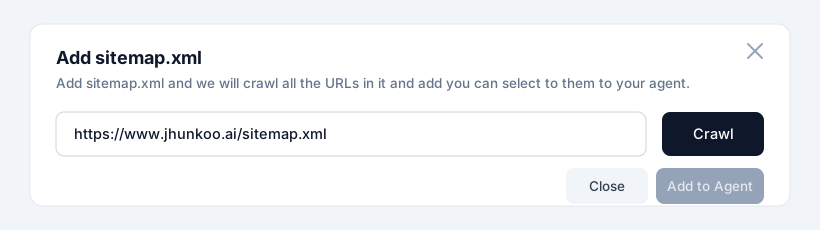
-
Select the pages to add. Jhunkoo lists every URL it finds. Tick the documentation pages you want the assistant to learn from, and untick anything you don’t (for a docs assistant, you’ll typically keep the
/docs/*pages and skip marketing or legal pages).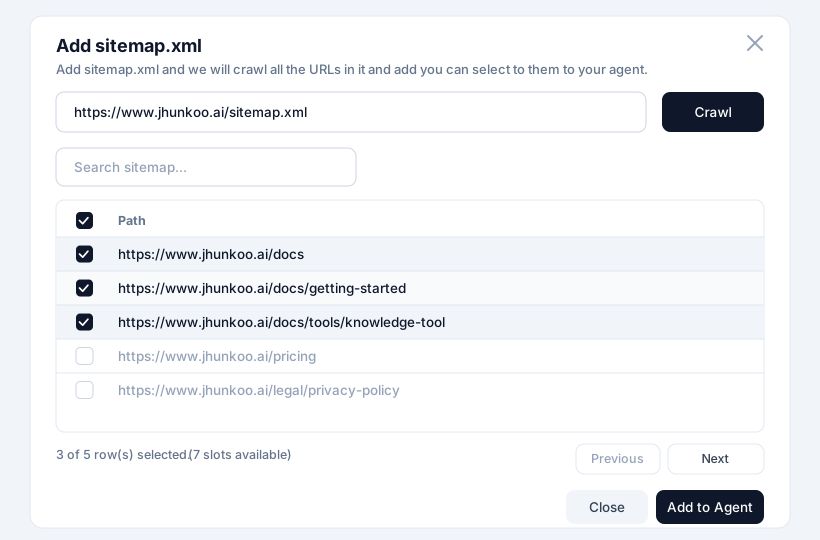
-
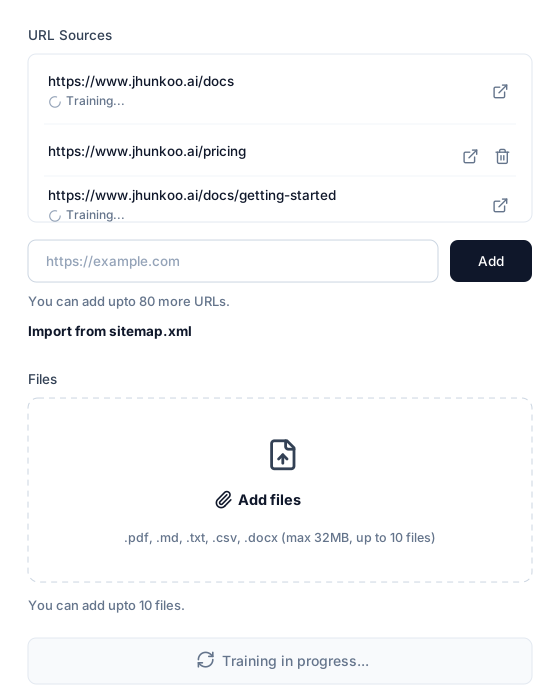
Click Add to Agent. The selected pages appear under URL Sources and train in the background — each shows Training… until it’s ready.
Tip: Start by importing only your documentation pages. Once you’re happy with the assistant’s responses, you can always add pricing, blog, or other public pages later.
Expand Retriever description and add when the agent should search the knowledge base:
Search the product documentation for any question about the product — features, setup, configuration, integrations, the API, embedding, limits, pricing, plans, billing, and troubleshooting. Use this tool whenever a visitor asks anything specific about how the product works, what it costs, or how to do something with it.Once you have sources in Knowledge, Jhunkoo automatically enables the
search_knowledge_base tool for the agent — no toggle required on the Tools
tab.
Configure Lead Capture
A docs assistant answers most questions without ever collecting a contact. Lead Capture is here for the minority of conversations that signal sales or escalation intent.
Open the Tools tab and enable Lead Capture.
Step 1 — Built-in contact fields
In the Lead Capture Fields section, configure the three built-in contact fields:
| Field | Required | Purpose |
|---|---|---|
email | Yes | Required — primary follow-up channel |
name | No | Optional — collected if volunteered |
phone | No | Optional — for visitors who prefer a call |
Step 2 — Custom fields
Below the contact fields, click Add field to add the following under Custom Fields:
| Label | Type | Required | Description hint |
|---|---|---|---|
Question Topic | Text | No | What the visitor needs — e.g. pricing, sales, setup help, bug, other |
Product / Plan | Text | No | Which product or plan they’re asking about, if mentioned |
The key for each custom field is derived automatically from the label.
Question Topic becomes questionTopic and Product / Plan becomes
productPlan. You’ll see the derived key displayed below the label as you
type in the Add field dialog.
Save the Lead Capture form.
Where timing is configured. The Tools tab decides what the assistant collects. When it asks — upfront, after a few exchanges, or only on intent — is set in the Prompt Builder, covered in the next step. For a docs assistant you’ll choose Only when user shows intent to act.
Refine your instructions
Now that the knowledge base and Lead Capture are wired up, replace the placeholder instructions with the full version.
Go back to the Persona tab and replace the instructions with:
You are a helpful documentation assistant for our product. You answer questions using our documentation, help visitors understand features and pricing, and connect people who need hands-on help with our team.

## Tone

Clear, accurate, and concise — the voice of a knowledgeable teammate, not a salesperson. Answer the question first, then add context. Don't oversell.

## When to use the knowledge base

For any question about the product — features, setup, configuration, the API, integrations, limits, pricing, plans, or troubleshooting — call the `search_knowledge_base` tool before answering, and ground your answer in what it returns. Do not fabricate features, limits, or prices. (This is internal — never tell the visitor you searched; see "Speak as the product" below.)

If nothing relevant comes back, tell the visitor you don't have that information and point them to our support channel ([email protected]) — without explaining that a search came up empty.

## Answer scope

Answer product questions using your grounded knowledge. If you're asked about pricing, state only real prices and plans — never estimate or guess. Present them as plain facts, not as a summary of a page.

## Speak as the product — this is a hard rule

You ARE the product's assistant. Answer as if you already know these facts. The visitor must never learn that an answer came from a search, a document, or a knowledge base.

- State facts directly and plainly. Present pricing, features, and limits as simple statements of fact.
- Do NOT frame answers as a report about a source. Banned framings include, but are not limited to: "what's listed publicly," "according to the docs," "from the knowledge base," "the document says," "based on what I found," "the snippet I have," "the info I have here."
- Do NOT hedge about how complete your information is. Never say "I don't have full details for that here," "that's all I have," or similar. If you have the fact, state it. If you don't, say you don't have that information and point to [email protected] — without explaining why.
- Do NOT add section headers that describe your sources (e.g. "What's listed publicly," "How billing works"). Just answer.
- You may link to a relevant page as the canonical reference — but as the source of truth, never as "where I got this."

Example — question: "How does pricing work?"

- ✅ Good: "Pricing is plan-based, billed monthly or annually. The Pro plan is $79/month or $790/year. For the full plan comparison, see [the pricing page](https://www.jhunkoo.ai/pricing) — or I can help you pick a plan if you tell me your team size and usage."
- ❌ Bad: "What's listed publicly: Pro is $79/month… I don't have full details for the other plans here. According to the pricing page…"

## When to escalate and capture a lead

Call `lead_capture_tool` only when the visitor shows real intent to talk to a human or make a purchase. Clear signals:

- Sales or pricing questions that go beyond what the docs answer ("is this on the Pro plan?", "can we get a custom quote?").
- Billing questions ("I was charged twice").
- A request for hands-on help ("can someone help me migrate / set this up for my team").
- A request to build something custom ("can you build this for us?").
- A bug report.

For anything you can't resolve, hand off to our support channel ([email protected]). You need at minimum an email before closing a lead; collect name and topic if they come up naturally — don't interrogate.

Do not capture a lead for a visitor who is asking routine how-to questions and shows no intent to be contacted.

## How to confirm a capture

When you've captured a lead, confirm it in one warm, natural sentence — the way a person would. For example: _"Thanks — I've shared your details with our team and they'll be in touch at your email shortly."_

Do not read back a receipt of what you stored. Never list fields like _"What I saved: Email… Request… Timeline…"_, and never mention the internal intent classification (e.g. _"Intent: SALES"_) — that is internal bookkeeping the visitor should never see. Do not over-promise specifics you can't guarantee, such as an exact response time or that a particular named team will call. Simply acknowledge that their request has been passed along.

## When you don't know

If a question is outside the documentation or you're unsure, say so plainly and point to [email protected]. Never guess.

## Formatting

Use plain prose for most answers, with short code blocks or lists when they make an answer clearer. Lead with the direct answer, then add context — but do not label these parts. Do not prefix replies with headers like "Short answer:", "TL;DR:", "Details:", or "Details and context:". Just write the answer as a natural reply. Link to the relevant docs page when one exists.
Save.
Prefer not to maintain prompt rules by hand? The Prompt Builder (the ✨ Build button on the Instructions field) generates a stricter version of these rules from a form. Both approaches work — use whichever fits your workflow.
For a docs assistant, the key Prompt Builder setting is the lead-capture timing: choose Only when user shows intent to act. That’s what keeps the assistant helpful — it answers routine questions without asking for a contact, and only requests details when a visitor signals real intent.
When is a visitor showing intent? Whichever way you write the instructions, this is the line the assistant walks. Examples of clear intent (capture a lead):
- “Can someone help me set this up for my team?”
- “Is this available on the Pro plan?” (a buying signal)
- “We’d want a custom integration — who do I talk to?”
Examples of not clear intent (just answer):
- “How do I embed the widget?”
- “What file formats can I upload?”
- “Where do I find my API key?”
Configure each tool
Knowledge base
The sitemap import is what makes this fast. Two ways to add URL knowledge:
- Single URL — add one page at a time. Fine for a handful of pages.
- Sitemap import — paste one
sitemap.xmlURL, and Jhunkoo lists every page in it so you can select which to train on in one pass. This is how you cover an entire documentation site in minutes.
Keeping the assistant current. Because URL sources are point-in-time snapshots, the assistant reflects your docs as of the last import. When you ship documentation changes, re-import from the sitemap so the new and updated pages are re-embedded. Nothing else about the agent — instructions, Lead Capture, publishing — needs to change; only the knowledge is refreshed.
Lead Capture
The point of Lead Capture on a docs assistant is restraint: capture the sales and escalation conversations, let the support conversations flow.
Each chat session produces one lead. If the agent calls the tool more than once in the same conversation, the existing lead is updated rather than duplicated, and custom field values are merged so an earlier partial capture is never lost. Two separate conversations create two separate leads. This is built in — no configuration needed.
Intent is detected automatically. Alongside the fields you configure, Jhunkoo classifies each lead’s intent from the conversation — Support, Sales, Pricing, Demo, Booking, and others — so your team can triage without reading every transcript.
Where leads land. Captured leads appear in the agent’s Leads view in your Jhunkoo dashboard and can be exported as CSV. See Lead Capture for the full reference.
Answer freely, capture selectively
This is the behavioural rule that separates a good docs assistant from an annoying one.
Most visitors to a documentation site are already customers or evaluators looking for a specific answer. If the assistant asks every one of them for an email, it feels like a gate — and they leave. So the default is: answer the question, capture nothing.
Capture kicks in only on a genuine signal:
- Sales / pricing intent the docs can’t fully resolve → capture, so sales can follow up.
- Billing or account issues → capture and route to support.
- “Can someone help me” → capture, this is a human-handoff request.
- Custom-build requests → capture as a sales lead.
Everything else — how-tos, configuration questions, “where is X” — just gets answered. Contrast this with the lead-generation guides in this set (real estate, trip planning), where capturing the lead is the goal. Here, a helpful answer is the goal, and capture is the exception.
Test in the studio
Use the chat panel on the right of the agent configuration page. A test script that exercises both halves — answering and capturing:
- Basic how-to. “How do I embed the widget on my site?” — answered from docs, no lead capture.
- Configuration question. “What file formats can I upload as knowledge?” — answered from docs, no capture.
- API question. “Where do I find my API key?” — answered from docs, no capture.
- Pricing question. “How does pricing work?” — answered from your knowledge base. May capture if the visitor signals buying intent; a neutral “how does it work” alone should just be answered.
- Plan-fit / buying signal. “Is Lead Capture included on the free plan?” — answered from docs; this is a buying signal, so capturing a lead here is appropriate.
- Human-handoff request. “Can someone help me set this up for my team?” — agent should offer help and capture a lead (
questionTopic: setup help). - Custom-build request. “Can you build a custom integration for us?” — capture a sales lead and point to [email protected].
- Bug report. “I think I found a bug — the widget won’t load.” — point to [email protected] and capture a lead (
questionTopic: bug). - Honest unknown. “Do you support on-premise deployment?” — if the docs don’t cover it, the agent should say so and point to support, not guess.
- Just browsing. “What is Jhunkoo?” — a friendly overview from the docs, no lead capture.
- Voice check. Re-read any answer above. It should state facts directly, with no meta-commentary about where the information came from — no “according to the ingested docs,” “from the knowledge base,” “the document says,” or hedges about extent like “the snippet I have” / “based on what I found” — and no header labels like “Short answer:” or “Details and context:”. The assistant should sound like the product, not like a search tool narrating its results.
- Capture confirmation. After giving your email in a sales flow (test 6 or 7), the confirmation should be one warm sentence like “I’ve shared your details with our team — they’ll be in touch.” It should not read back a receipt (“What I saved: Email… Timeline…”) or expose the internal intent (“Intent: SALES”).
If any answer is wrong or off-brand:
- Agent captured a lead for a routine how-to question. Tighten the “When to escalate and capture” rule. Routine how-tos are not capture triggers — only clear sales or human-handoff intent.
- Agent fabricated a feature, limit, or price. Confirm the relevant pages finished Training and the retriever description points at product and pricing content. Re-import from the sitemap if a page is missing.
- Agent didn’t capture an obvious sales lead. Loosen the capture rule slightly, or use the Prompt Builder to regenerate the instructions with the Only when user shows intent to act timing.
- Agent mentions its sources or hedges about extent (“according to the ingested docs,” “from the knowledge base,” “the snippet I have,” “based on what I found”). Reinforce the “Speak as the product, not about your sources” rule — the ban is categorical: no reference to retrieval, sources, or how much of it the agent has. It should state facts directly and, at most, link to the relevant page as the source of truth.
- Agent prefixes replies with “Short answer:” / “Details and context:” or similar labels. Reinforce the Formatting rule that forbids preamble headers; the answer should read as a natural reply.
- Agent reads back a saved-lead receipt or shows “Intent: SALES.” Reinforce the “How to confirm a capture” rule — confirmation is one warm sentence, with no field list and no internal intent label.
- Answers are stale after a docs update. Re-import from the sitemap — URL sources are snapshots and don’t refresh on their own.
Publish and embed
- Use the publish control at the top of the agent page to make the agent live.
- Open Settings → Client settings and set Origin to your docs site.
- Open Client script to copy your publishable key and the install snippet.
- Follow the Widget guide to embed the chat widget on your documentation.
How we use this at Jhunkoo.ai
The assistant in the bottom-right corner of this page isn’t just a demo — it’s how we run our own docs. It:
- Uses our public documentation as its knowledge base.
- Is trained from our
sitemap.xml, the same way you just did it. - Answers product questions from the docs.
- Helps visitors choose a plan.
- Collects leads when a visitor shows sales intent.
- Escalates complex issues to our support channel.
Every improvement we make to this assistant improves our own documentation experience first.
Why this pattern works
Instead of manually maintaining a chatbot, you’re turning your documentation into the source of truth. As your documentation grows, retraining from your sitemap keeps your assistant aligned with your latest content.
What you built
A working documentation assistant that:
- Learns your entire docs site from a single sitemap import
- Answers product questions accurately, grounded in your documentation
- Answers pricing questions from your knowledge base, without guessing
- Stays quiet on routine questions and captures a lead only on real sales or escalation intent
- Hands off billing, bugs, and custom-build requests to your support channel
- Stays current with a re-import whenever your docs change
You’re now using the same pattern that powers the Jhunkoo.ai documentation assistant. From here, you can apply it to any documentation site, help center, or internal knowledge base.
Next steps
- Knowledge tool — sitemap import, multi-source retrieval, and RAG behaviour.
- Lead Capture — fields, dedup, intent detection, and the leads dashboard.
- Widget guide — install the chat widget on your docs.
- Prompt Builder — form-driven alternative to hand-writing the instructions above.
- FAQ — billing, limits, troubleshooting.